
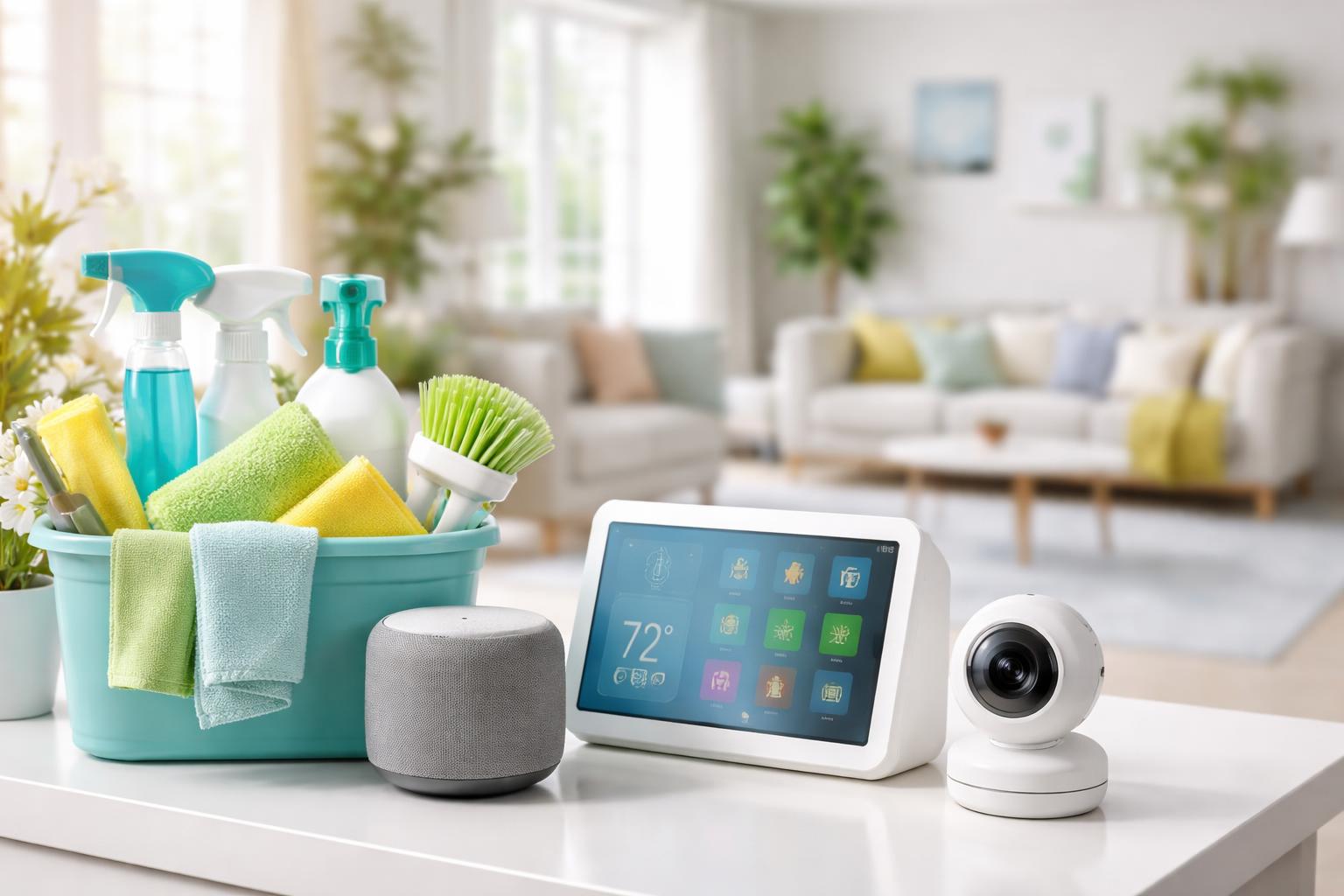
Smart Home Spring Cleaning Checklist: Update, Reset and Declutter Your Devices
Why Your Smart Home Needs a Spring Refresh
If you have ever found yourself staring at a flickering smart bulb that refuses to pair or a motion sensor that triggers the lights at 3:00 AM, you know that smart devices eventually lose their polish. Over time, outdated firmware and "ghost" connections clutter your digital landscape, leading to the laggy performance many homeowners mistake for a broken device. A seasonal cleaning keeps your network healthy and ensures your devices remain reliable.
Updating Your Device Firmware
Manufacturers push out regular software updates, often called firmware, to patch security vulnerabilities and improve connection stability. If you skip these, you might find that your smart home stops responding to your voice commands or fails to integrate with new apps.
The Manual Check
Open the app associated with your brand and check the "Device Settings" menu. Look for an "Update" button or a status notification that says "Firmware up to date." A common mistake beginners make is ignoring these updates for months; perform this check for every light bulb, plug, and camera at least once every quarter.
Decluttering Your Digital Connections
Your Wi-Fi router has a limit to how many devices it can manage simultaneously. If you have old smart plugs or sensors sitting in a junk drawer that are still connected to your network, they are actively eating up bandwidth and slowing down your newer, more important gear.
Removing Dead Devices
Use your smart home platform—whether it is Alexa or Google Home—to view a list of all connected devices. If a device is no longer in use, delete it from the app permanently. This creates more "breathing room" for your main devices and prevents weird errors where your assistant tries to talk to a plug that hasn't been plugged in for a year.
Performing a Hard Reset
Sometimes, a simple reboot doesn't cut it. If a device has been acting erratically, a factory reset wipes its internal memory and forces it to re-establish a fresh handshake with your hub or Wi-Fi network.
When to Factory Reset
Do this only when you have exhausted all other troubleshooting steps. Most devices have a physical button you must hold for 10–15 seconds, often while plugging it in. Check the manufacturer's manual specifically for the "factory reset" sequence, as holding a button for the wrong duration usually just restarts the device without clearing its settings.
Essential Cleaning and Hardware Maintenance
Dust is the silent enemy of smart home hardware. Sensors, such as motion detectors or air quality monitors, can fail or give false readings if their lenses or vents are clogged with debris. Use a microfiber cloth to gently wipe down your sensors. For products like the Kasa smart plug, ensure the exterior prongs are clean and free of dust build-up to maintain a solid, safe connection to your wall outlet.
What to Look For Before You Buy
- Ecosystem Compatibility: Ensure the device works with the platform you already use, such as Alexa or Google Home, to avoid managing multiple apps.
- Connection Type: Check if the device uses Wi-Fi, Zigbee, or Thread. Wi-Fi devices are great for beginners, while Zigbee is better for large homes to avoid overwhelming your router.
- Local Processing: Prioritize devices that can continue to work even if your internet goes down for a more stable experience.
Comparison Table: Smart Home Essentials
| Device | Best For | Major Limitation |
|---|---|---|
| Amazon Echo Hub | Centralized wall-mounted control | Requires a specific wall mount setup |
| Kasa Smart Plug | General appliance automation | Takes up space in dual-outlet sockets |
| TP-Link Tapo P115 | Budget-friendly energy monitoring | App interface can be cluttered |
Who Should Buy This
The Set-and-Forget Homeowner: You want a home that just works and don’t want to deal with constant troubleshooting.
The Privacy-Conscious Renter: You need devices that you can easily unplug, reset, and take with you when you move without leaving a trace.
Frequently Asked Questions
How often should I update my smart devices?
You should check for updates whenever you open your control app, ideally at least once every three months. Most modern apps provide a notification badge when an update is pending.
Will a factory reset delete my automations?
Yes, a factory reset deletes the device's association with your hub and its stored settings. You will need to re-add the device and recreate any routines that involved that specific item.
Does clearing my digital clutter actually make my Wi-Fi faster?
Yes, every device connected to your network maintains a small, constant stream of data. Removing unused devices frees up bandwidth and helps your router handle the load of your active devices more efficiently.
What if my device won't connect after a reset?
This is often due to your phone being on a 5GHz Wi-Fi band while the device requires a 2.4GHz band. Move your phone further away from your router during setup to force it onto the 2.4GHz frequency, or check out our guide on common smart home problems for renters for more tips.
Final Verdict
The most important step for a successful spring cleaning is consistency. Start by deleting your ghost devices and ensuring every active piece of tech is running the latest firmware. For those looking to add a reliable, energy-monitoring plug that won't clutter your network, the TP-Link Tapo P115 is the most efficient choice. Pick one room to reorganize this weekend and watch how much more responsive your home becomes.