
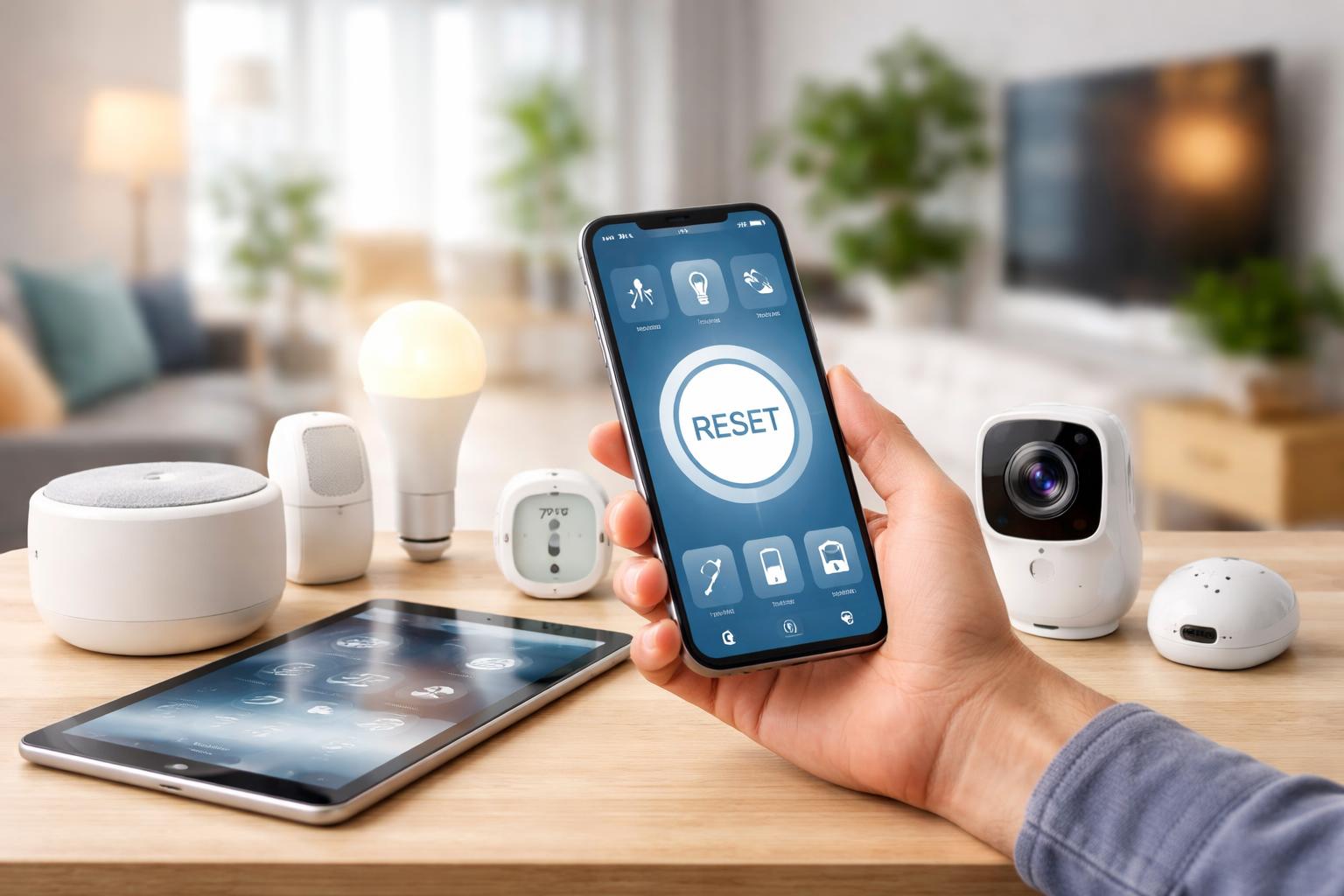
How to Reset and Re-Add Smart Home Devices Without Losing Your Automations
How to Keep Your Automations Alive During a Reset
If you have ever spent hours configuring your smart home, only to have a device lose connection and force you through the dreaded "factory reset" process, you know the frustration of losing your carefully crafted routines. You do not need to delete your automations in the app just because a physical device acts up; in most ecosystems, the automation is tied to the hub or the cloud account, not the specific piece of hardware itself.
The Golden Rule of Smart Home Resets
The most common mistake owners make is removing a device from their smart home app before trying a soft reboot or a power cycle. When you "delete" a device from your app, the hub loses the link between that device's unique ID and the automated routines you created. Instead, keep the device in your app's dashboard while you troubleshoot.
If you must perform a full factory reset, the goal is to make the hub think the device just lost power temporarily. After the reset, you re-add the device, and the hub usually recognizes it as the same entity. Because the ID remains, your existing automations—like "Turn on kitchen light at sunset"—will often attach themselves back to the hardware without you having to rebuild the entire sequence.
Managing Devices with a Smart Hub
If you use a dedicated controller like the Samsung SmartThings Hub, you are in a better position than users relying solely on Wi-Fi. This hub is ideal for users who want local control, which means your routines run even if your internet goes down for a few hours. The downside is that adding a new protocol, like Zigbee or Z-Wave, has a steeper learning curve than simple Wi-Fi devices.
When a Z-Wave sensor stops reporting, do not remove it from the SmartThings app. Instead, put the hub in "Exclude" mode and press the physical button on the sensor. Once it is excluded, put the hub back in "Include" mode and add it again. The hub will often replace the old entry with the new one, keeping your previous automations intact.
Resetting Smart Displays and Speakers
Smart displays like the Google Nest Hub or the Amazon Echo Hub serve as the brains of your home, so resetting them is a final resort. If your display is acting sluggish, try a simple power-off for 60 seconds first.
If you absolutely must factory reset, know that your automations are stored in your Google or Amazon account cloud. Once you log back into the device, it will pull your routines down from the cloud. The only thing you will likely need to do is re-assign the device to its specific room within the app settings.
What to Look For Before You Buy
- Local Control Support: Choose hubs that process data locally, as they are less prone to losing automation links during internet outages.
- Matter Compatibility: Devices that support the Matter standard make it much easier to re-link hardware to different platforms without losing your setup.
- Cloud Backup Features: Some advanced platforms offer cloud backups that allow you to restore your entire home configuration with one click.
- Manual Override Capability: Always ensure your smart devices have a physical switch or button so you can control them if the "smart" connection fails.
Comparison of Smart Hubs
| Feature | Samsung SmartThings | Amazon Echo Hub | Google Nest Hub |
|---|---|---|---|
| Local Processing | Yes | Partial | Limited |
| Best For | Advanced users | Alexa ecosystems | Google Home users |
| Complexity | High | Low | Low |
Frequently Asked Questions
Will I lose my scenes if I factory reset a light bulb?
Usually, no. If the bulb is controlled via a hub, the hub stores the scene logic; once the bulb is re-paired, the hub sends the command to the bulb as if nothing changed.
How long should I wait after a power cycle before resetting?
Wait at least 30 seconds for the device to discharge any stored energy. Many connection issues are simply caused by a device being "stuck" in a specific state that only a full power flush can resolve.
Does the order of adding devices matter after a reset?
Generally no, but it is best to ensure your hub is online and fully updated before you start re-adding any reset devices. This prevents synchronization conflicts that can lead to missing device IDs.
Final Verdict
For most homeowners, the Samsung SmartThings Hub remains the best choice because its robust handling of Z-Wave and Zigbee makes it far easier to swap out or reset hardware without breaking your automation logic. If your automations frequently vanish, stop deleting devices from your app and start using the "exclude" or "re-pair" features instead. Open your smart home app now and check if your firmware is up to date; outdated software is the most common silent killer of stable routines.