
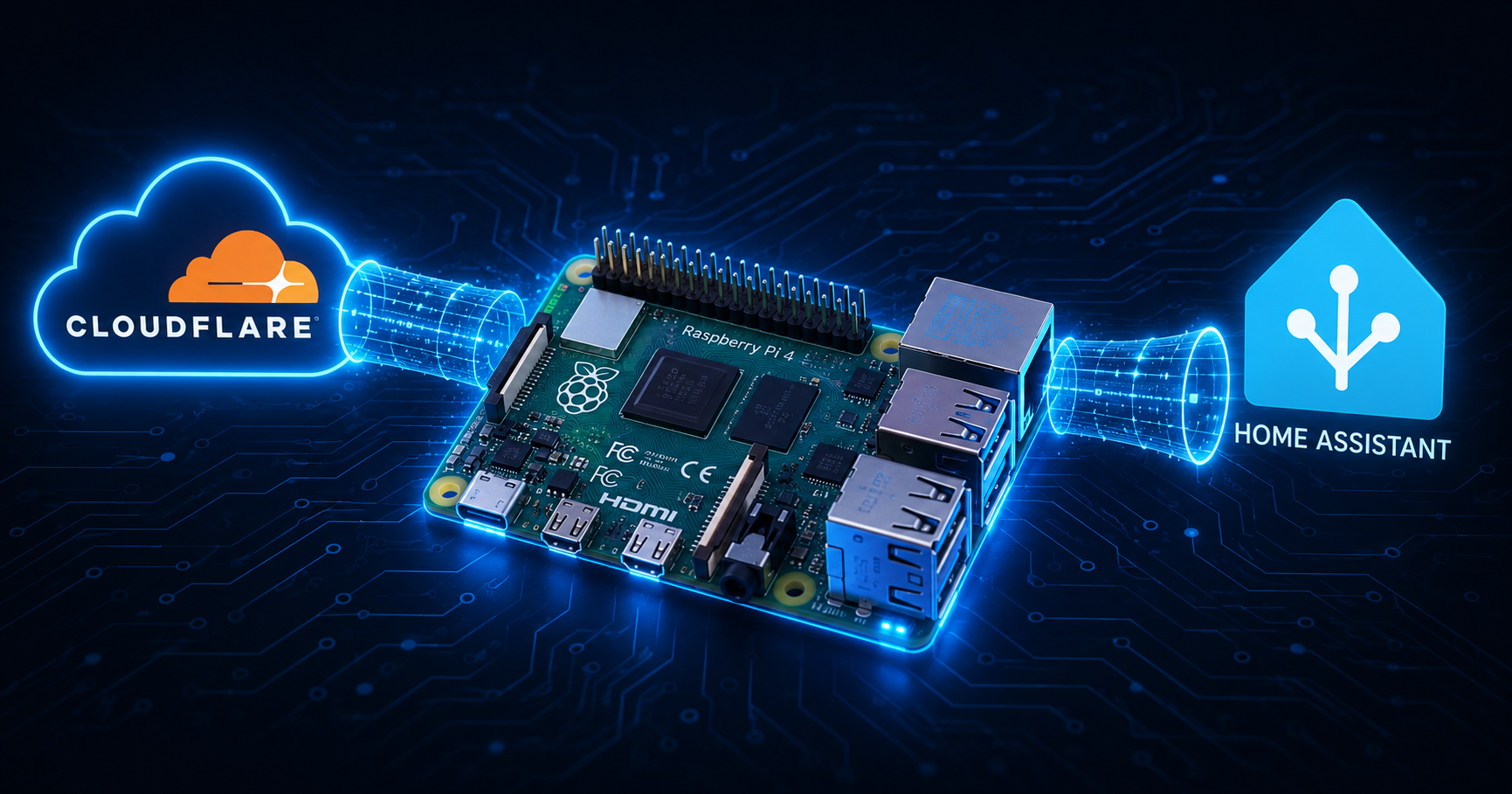
How to Set Up Home Assistant on Raspberry Pi with Remote Access via Cloudflare Tunnel (2026)
Running Home Assistant on a Raspberry Pi gives you a powerful, self-hosted smart home hub — no subscriptions, no cloud dependency, full control over your data. But the moment you step outside your home network, you lose access. That's where Cloudflare Tunnel comes in: a free, secure way to reach your Home Assistant from anywhere in the world without opening ports on your router or paying for a VPN.
This guide walks you through the complete setup — from installing Home Assistant in Docker on your Raspberry Pi to making it securely accessible at a custom domain like ha.yourdomain.com.
What You'll Need
Before starting, make sure you have the following:
- Raspberry Pi 4 (2GB RAM minimum, 4GB recommended) with Raspberry Pi OS installed
- MicroSD card (32GB or more) or USB SSD for better reliability
- Docker and Docker Compose installed on the Pi
- A domain name managed through Cloudflare (free plan works)
- A Cloudflare account (free)
- Basic comfort with SSH and the Linux terminal
Why Docker Instead of HA OS?
Home Assistant offers multiple installation methods. HA OS is the easiest but locks you into a dedicated device. Running HA in Docker gives you:
- Flexibility — run other services (APIs, bots, databases) on the same Pi
- Full control — manage everything with standard Docker commands
- Easier backups — your entire config lives in a single folder
The trade-off is that the HA Add-on Store is not available in Docker mode. Community integrations installed via HACS still work perfectly, which covers 99% of what the add-on store offers.
Step 1 — Install Docker on Your Raspberry Pi
SSH into your Pi and run:
curl -fsSL https://get.docker.com | shsudo usermod -aG docker piLog out and back in for the group change to take effect, then verify:
docker --versionStep 2 — Create the Home Assistant Docker Compose File
Create a dedicated folder for HA and set up the compose file:
mkdir -p /home/pi/homeassistantcd /home/pi/homeassistantnano docker-compose.ymlPaste the following:
services: homeassistant: container_name: homeassistant image: "ghcr.io/home-assistant/home-assistant:stable" volumes: - /home/pi/homeassistant:/config - /etc/localtime:/etc/localtime:ro - /run/dbus:/run/dbus:ro restart: unless-stopped privileged: true network_mode: hostA few important notes about this config:
network_mode: hostis required for HA to properly discover devices on your local network. This is also why no port mapping appears indocker ps— and it must stay this way for the Cloudflare tunnel to work correctly.privileged: truegives HA access to hardware like Bluetooth/run/dbus:/run/dbus:roenables Bluetooth integration
Step 3 — Start Home Assistant
cd /home/pi/homeassistantdocker compose up -dHA will pull the latest stable image and start. The first boot takes 2–5 minutes. Watch the logs to know when it's ready:
docker logs homeassistant -fOnce you see Starting Home Assistant, open your browser and navigate to http://YOUR_PI_IP:8123 to complete the onboarding wizard and create your admin account.
Step 4 — Install Cloudflare Tunnel (cloudflared)
Cloudflare Tunnel creates an outbound-only encrypted connection from your Pi to Cloudflare's network. No open ports on your router, no static IP needed, and Cloudflare handles SSL automatically.
Download and install cloudflared for ARM64 (Raspberry Pi):
curl -L https://github.com/cloudflare/cloudflared/releases/latest/download/cloudflared-linux-arm64 \ -o cloudflaredchmod +x cloudflaredsudo mv cloudflared /usr/local/bin/cloudflaredcloudflared --versionStep 5 — Authenticate with Cloudflare
cloudflared tunnel loginThis prints a URL. Open it in your browser, log into your Cloudflare account, and select your domain. A certificate is saved to your Pi automatically.
Step 6 — Create the Tunnel
cloudflared tunnel create homeassistantCopy the tunnel ID from the output — it looks like xxxxxxxx-xxxx-xxxx-xxxx-xxxxxxxxxxxx. You'll need it in the next step.
Step 7 — Configure the Tunnel
Create the config file:
sudo mkdir -p /etc/cloudflaredsudo nano /etc/cloudflared/config.ymlPaste the following, replacing YOUR_TUNNEL_ID with the ID from Step 6:
tunnel: YOUR_TUNNEL_IDcredentials-file: /home/pi/.cloudflared/YOUR_TUNNEL_ID.jsoningress: - hostname: ha.yourdomain.com service: http://localhost:8123 - service: http_status:404Important: Always use localhost — not your Pi's local IP — as the service address. Using 192.168.x.x causes proxy header errors that block access from outside your network.
Step 8 — Add the DNS Record
cloudflared tunnel route dns YOUR_TUNNEL_ID ha.yourdomain.comThis creates a CNAME record in Cloudflare DNS automatically. No manual DNS editing required.
Step 9 — Run Cloudflared as a Service
sudo cloudflared service installsudo systemctl enable cloudflaredsudo systemctl start cloudflaredsudo systemctl status cloudflaredYou should see active (running). The tunnel will now start automatically on every reboot.
Step 10 — Configure HA to Trust the Cloudflare Proxy
Since requests now arrive through Cloudflare, HA needs to trust the forwarded headers. Without this, HA refuses to serve the page and every request returns an error.
nano /home/pi/homeassistant/configuration.yamlAdd this block:
http: use_x_forwarded_for: true trusted_proxies: - 127.0.0.1 - ::1Restart HA:
docker restart homeassistantStep 11 — Test Your Setup
Open your browser from any network — try your phone on mobile data to confirm it works outside your home:
https://ha.yourdomain.comYou should see the Home Assistant login screen with a valid SSL certificate — no warnings, no port numbers in the URL.
Adding More Services to the Same Tunnel
One tunnel can serve multiple subdomains. If you later want to expose another Docker service on your Pi, simply add entries to the ingress block in /etc/cloudflared/config.yml:
ingress: - hostname: ha.yourdomain.com service: http://localhost:8123 - hostname: myapp.yourdomain.com service: http://localhost:5000 - service: http_status:404Then add the DNS route for the new subdomain and restart:
cloudflared tunnel route dns YOUR_TUNNEL_ID myapp.yourdomain.comsudo systemctl restart cloudflaredNote: The http_status:404 line must always remain last — it's the catch-all fallback for unmatched hostnames.
Troubleshooting
"Unable to connect to Home Assistant" in browser
Check that both services are running:
sudo systemctl status cloudflareddocker ps | grep homeassistant"Received X-Forwarded-For header from an untrusted proxy" in HA logs
Your configuration.yaml is missing the http block from Step 10, or the proxy IP doesn't match. Check your logs to see which IP needs to be trusted, then add it to your trusted_proxies list:
docker logs homeassistant --tail 20HA container disappeared after reboot
You likely created the container manually with docker run instead of docker compose. Always use docker compose up -d from /home/pi/homeassistant/ so the restart: unless-stopped policy is applied correctly.
Tunnel works but HA shows port mapping in docker ps
If you see 0.0.0.0:8123->8123/tcp in the PORTS column, the container is not in host network mode. Stop, remove, and recreate it using compose:
docker stop homeassistantdocker rm homeassistantcd /home/pi/homeassistantdocker compose up -dCloudflare Tunnel vs. Other Remote Access Methods
| Method | Cost | Port Forwarding | SSL | Difficulty |
|---|---|---|---|---|
| Cloudflare Tunnel | Free | ❌ Not needed | ✅ Automatic | Easy |
| Nabu Casa (HA Cloud) | $6.50/month | ❌ Not needed | ✅ Automatic | Easiest |
| VPN (WireGuard) | Free | ✅ Required | Manual | Medium |
| Reverse Proxy (Nginx) | Free | ✅ Required | Manual | Hard |
| Dynamic DNS | Free/Paid | ✅ Required | Manual | Medium |
Cloudflare Tunnel hits the sweet spot: free, no port forwarding, automatic SSL, and it works even if your ISP changes your IP address.
Frequently Asked Questions
Q: Is Cloudflare Tunnel safe for Home Assistant?
Yes. The tunnel is outbound-only — your Pi initiates the connection to Cloudflare, meaning no inbound ports are open on your router. Cloudflare handles DDoS protection, SSL termination, and traffic encryption automatically.
Q: What happens if Cloudflare goes down?
You can still access HA locally at http://YOUR_PI_IP:8123. Remote access would be unavailable until Cloudflare recovers, which is rare given their infrastructure scale.
Q: Can I use this with a free Cloudflare plan?
Yes. Cloudflare Tunnel is fully available on the free plan with no bandwidth limits for this type of usage.
Q: Will this work if my ISP gives me a dynamic IP?
Yes — that's actually one of the main advantages of Cloudflare Tunnel. Since the Pi initiates the connection outbound, your external IP address is completely irrelevant.
Q: Can I add more subdomains to the same tunnel later?
Yes. Add as many ingress rules as you want to the config file. Each subdomain just needs a DNS route and an ingress entry — no new tunnel required.
What's Next
With Home Assistant running and securely accessible from anywhere, you're ready to start building your smart home. The next article in this series covers one of the most important foundations: reliable presence detection — knowing when you and your family are home or away, without GPS delays, false triggers, or cloud dependencies.
This article is part of the Plain Digit Smart Home series. Follow along as we build a complete, self-hosted smart home system on a Raspberry Pi.