
Disclosure: This article contains affiliate links. As an Amazon Associate, we earn from qualifying purchases at no extra cost to you.
Smart Home, Smart Pet: How to Automate Your Pet Feeding with Google Home or Alexa
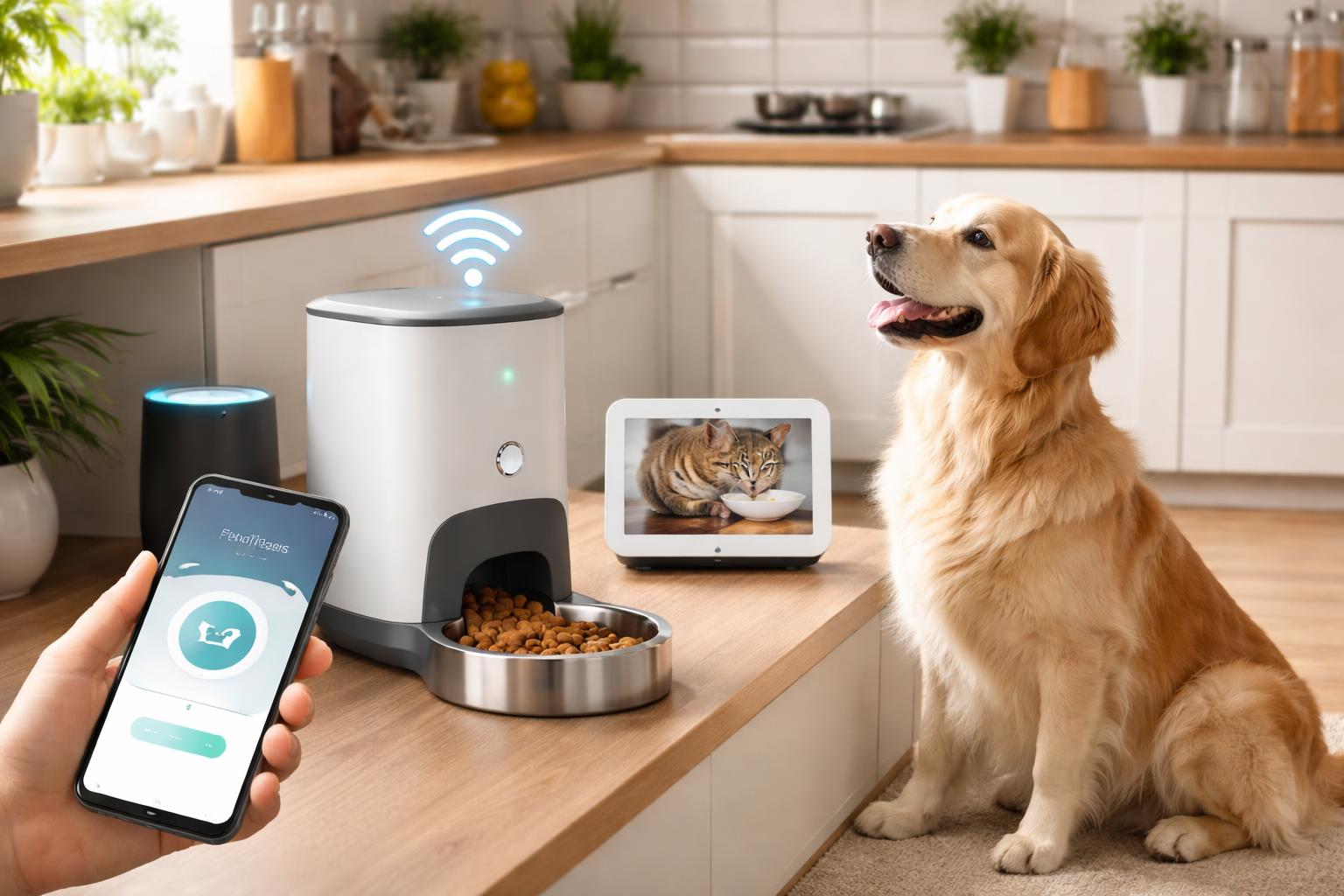
You can absolutely automate your pet’s feeding schedule using Google Home or Alexa by integrating a Wi-Fi enabled smart pet feeder into your smart home ecosystem. These innovative devices connect to your home network, allowing you to set precise meal times, control portion sizes, and even dispense food on demand using simple voice commands or through a dedicated smartphone app, bringing unparalleled convenience and consistency to your pet’s meal routine.
The Benefits of Automating Your Pet’s Feeding
In our increasingly busy lives, ensuring our pets receive timely and consistent meals can be a challenge. Smart home technology offers a revolutionary solution, transforming pet care from a daily chore into a seamless, automated process. Integrating your pet’s feeding into your Google Home or Alexa ecosystem provides numerous advantages for both you and your beloved companion.
Consistency is Key for Pet Health
Pets, much like humans, thrive on routine. Regular feeding schedules are crucial for their digestive health, metabolism, and overall well-being. A consistent mealtime can reduce anxiety in pets, especially those prone to stress, and help regulate their appetite. Automated feeders ensure meals are dispensed at the exact same time every day, regardless of your schedule, preventing the potential for missed meals or inconsistent timing that can disrupt your pet’s biological clock. This predictability contributes significantly to a calmer, happier, and healthier pet.
Peace of Mind While Away
One of the most significant benefits of automated pet feeding is the peace of mind it offers. Whether you’re working late, running errands, or enjoying a weekend getaway, you no longer have to worry about rushing home to feed your pet. With a smart pet feeder connected to your voice assistant, you can check feeding logs, dispense an extra meal remotely, or simply rest assured that your pet’s nutrition is being managed precisely as planned. This freedom allows you to enjoy your activities without the constant concern for your pet’s meal schedule, making your life simpler and your pet’s life more stable.
Managing Portions and Diet
Obesity is a growing concern for pets, leading to various health issues. Manual feeding often results in inconsistent portioning, which can contribute to overfeeding. Smart pet feeders are designed with precise portion control in mind. You can program them to dispense exact amounts of food at each meal, making it much easier to manage your pet’s weight and adhere to specific dietary requirements recommended by your vet. This precision is invaluable for pets on weight management programs or those with health conditions requiring strict dietary adherence.
Enhancing Your Smart Home Ecosystem
For those who have embraced smart home technology, integrating a pet feeder is a natural extension of an interconnected lifestyle. It adds another layer of convenience and control to your existing setup. Imagine telling Google Home or Alexa, “Feed the dog dinner,” and hearing the feeder activate. This seamless integration means managing your pet’s meals becomes as easy as controlling your lights or thermostat, further streamlining your daily routines and enhancing the overall functionality of your smart home.
Understanding Smart Pet Feeders
Before diving into automation, it’s essential to understand what smart pet feeders are and what features to look for. These devices are the cornerstone of automated pet feeding, providing the mechanism through which your voice assistant can control your pet’s meals.
Wi-Fi Enabled Feeders
At their core, most smart pet feeders are Wi-Fi enabled, which is what allows them to communicate with your smartphone and voice assistants like Google Home and Alexa. This connectivity is crucial for remote control and integration into your smart home system. When choosing a feeder, ensure it explicitly states Wi-Fi compatibility and check for any specific app requirements or integrations with major smart home platforms.
Key Features to Look For
Not all smart feeders are created equal. To get the most out of your automated feeding setup, consider the following key features:
- Meal Scheduling: The ability to set multiple meals per day with precise times is fundamental. Look for feeders that offer flexible scheduling options to match your pet’s specific needs.
- Portion Control: Accurate portioning is vital for managing your pet’s diet. Feeders often allow you to specify portion sizes in grams or cups, dispensing food precisely each time.
- Voice Recording: Some feeders allow you to record a short message that plays at mealtime, calling your pet to eat. This can be particularly comforting for pets when you’re not home.
- Battery Backup: Power outages happen. A feeder with a reliable battery backup ensures your pet doesn’t miss a meal even if your Wi-Fi or electricity goes down.
- Camera Monitoring: Advanced feeders include an integrated camera, often with two-way audio. This feature lets you check in on your pet, see them eating, and even talk to them remotely.
- App Control: A user-friendly mobile app is essential for setting schedules, monitoring feeding activity, and manually dispensing food from anywhere.
- Food Compatibility: Ensure the feeder is compatible with your pet’s food type (dry kibble is standard) and size.
- Capacity: Consider the hopper capacity based on your pet’s size and how long you want to go between refills.
Integrating with Google Home and Alexa: The Basics
Connecting your smart pet feeder to your voice assistant is usually a straightforward process. Once linked, you unlock the full potential of voice-controlled pet care.
How Smart Feeders Connect
Most Wi-Fi enabled smart pet feeders connect to your home’s 2.4GHz Wi-Fi network. They typically have a companion app that guides you through the setup process, which involves connecting the feeder to your Wi-Fi. Once the feeder is online and configured in its native app, you’ll then link that app or “skill” to your Google Home or Alexa app.
Setting Up Your Device (General Steps)
- Unbox and Power On: Follow the manufacturer’s instructions to assemble the feeder and plug it into power.
- Download the Feeder’s App: Install the specific app for your smart pet feeder (e.g., the WOPET app for WOPET feeders, or the PETLIBRO app for PETLIBRO WiFi feeders).
- Create an Account: Register for an account within the feeder’s app.
- Connect to Wi-Fi: Use the app to connect the feeder to your home Wi-Fi network. This usually involves putting the feeder in pairing mode and entering your Wi-Fi credentials.
- Configure Feeding Schedules: Within the feeder’s app, set up your desired feeding schedules, portion sizes, and any other specific settings.
- Link to Google Home/Alexa:
- For Alexa: Open the Alexa app, go to “More” > “Skills & Games.” Search for the skill associated with your pet feeder’s brand (e.g., “WOPET,” “PETLIBRO”). Enable the skill and link your feeder account.
- For Google Home: Open the Google Home app, tap the “+” icon > “Set up device” > “Works with Google Home.” Search for your pet feeder’s brand, select it, and link your feeder account.
- Assign a Name: Once linked, you can assign a friendly name to your feeder (e.g., “Dog Food Dispenser,” “Cat Feeder”) within the Google Home or Alexa app, making voice commands easier.
Voice Commands for Feeding
Once your smart pet feeder is successfully integrated, you can start using voice commands. Common commands include:
- “Alexa, feed the dog.” (This might dispense a pre-set ‘manual’ portion)
- “Hey Google, give the cat an extra snack.”
- “Alexa, dispense one portion from the pet feeder.”
- “Hey Google, what’s the feeding schedule for Fido?” (If the feeder supports this query)
Exact commands may vary slightly depending on the feeder and its associated skill/integration, so always check the manufacturer’s instructions.
Choosing the Right Smart Pet Feeder for Your Home
Selecting the perfect smart pet feeder involves considering several factors specific to your pet and household. It’s not just about getting any smart feeder; it’s about finding the one that best fits your needs.
Considerations for Your Pet and Lifestyle
- Pet Size and Type: Large dogs require larger capacity feeders, while cats or small dogs might benefit from smaller, more compact designs. Ensure the dispenser mechanism can handle your pet’s specific kibble size without jamming.
- Food Type: Most smart feeders are designed for dry kibble. If your pet eats wet food, you’ll need to explore specialized feeders, which are less common in the smart home ecosystem due to spoilage concerns.
- Connectivity: Double-check that the feeder supports 2.4GHz Wi-Fi, as this is the most common home network frequency used by smart devices.
- Capacity: How often do you want to refill the feeder? A larger capacity is ideal for multiple pets or extended absences.
- Security Against Prying Paws: Some clever pets might try to “break into” the feeder. Look for designs that are sturdy and difficult for pets to tamper with or knock over.
Smart Pet Feeder Features Comparison
To help you decide, here’s a comparison of common features you’ll find in various smart pet feeders:
| Feature | Basic Wi-Fi Feeder | Mid-Range Feeder (e.g., WOPET) | Premium Feeder (e.g., PETLIBRO WiFi) |
|---|---|---|---|
| Wi-Fi Connectivity | Yes | Yes | Yes |
| App Control | Basic scheduling & manual dispense | Advanced scheduling, feeding history, manual dispense | Advanced scheduling, feeding history, real-time monitoring, remote dispense |
| Portion Control | Yes (fixed increments) | Yes (variable increments) | Yes (highly precise, often in grams) |
| Meal Scheduling | Up to 4 meals/day | Up to 6-8 meals/day, flexible scheduling | Up to 10+ meals/day, highly customizable, daily/weekly repeats |
| Voice Recording | Sometimes | Yes | Yes (often customizable length) |
| Battery Backup | Often (D-cell batteries) | Yes (D-cell batteries) | Yes (D-cell batteries, sometimes rechargeable) |
| Integrated Camera | No | Optional models have a camera | Often includes HD camera (sometimes with night vision & 2-way audio) |
| Material & Durability | Standard plastic | Durable plastic, sometimes with stainless steel bowl | Premium food-grade materials, often with stainless steel bowl, anti-clog design |
When looking at options like WOPET feeders, you’ll find a range of models, some focusing on essential automation, while others integrate cameras for remote viewing. Similarly, PETLIBRO WiFi feeders often boast features like advanced app control and sleek designs, catering to users who want more precise control and monitoring capabilities. General Wi-Fi enabled smart pet feeders offer a broad spectrum of functionalities, so comparing their specific features against your pet’s needs is key.
Step-by-Step Guide: Automating Pet Feeding
Let’s break down the practical steps to get your pet feeding system up and running with Google Home or Alexa.
For Wi-Fi Enabled Smart Feeders
- Installation & Physical Setup:
- Unpack your smart feeder and assemble it according to the manufacturer’s instructions. This usually involves attaching the food hopper, dispenser, and food tray.
- Fill the hopper with your pet’s dry kibble.
- Place the feeder in a stable location, ideally near a power outlet and within good range of your Wi-Fi signal.
- Plug in the feeder. Insert backup batteries if your model supports them.
- App Configuration & Initial Schedule:
- Download the specific app for your feeder (e.g., WOPET, PETLIBRO, or a generic smart home app like Smart Life if supported).
- Follow the in-app instructions to create an account and connect the feeder to your home 2.4GHz Wi-Fi network. This often involves a pairing mode on the feeder and entering your Wi-Fi password in the app.
- Once connected, use the app to set up your pet’s initial feeding schedule. Determine the number of meals per day, the exact times for each meal, and the precise portion size (e.g., 1/4 cup, 20g).
- Test a manual feed from the app to ensure the food dispenses correctly.
- Linking to Google Home or Alexa:
- For Alexa: Open the Alexa app. Go to “More” > “Skills & Games.” Search for the brand of your pet feeder (e.g., “WOPET,” “PETLIBRO”). Select the skill, tap “Enable to Use,” and then log in with the account credentials you created for your feeder’s app. Alexa will then discover your new device.
- For Google Home: Open the Google Home app. Tap the “+” icon at the top left > “Set up device” > “Works with Google Home.” Search for your feeder’s brand, select it, and then log in with your feeder app account credentials. Google Home will then link and recognize the device.
- Once linked, assign a clear, easy-to-remember name to your feeder within the Alexa or Google Home app (e.g., “Buddy’s Feeder,” “Cat Dinner”).
- Creating Routines (Optional but Recommended):
- To go beyond simple voice commands, create routines in your Alexa or Google Home app. For example:
- Alexa: Go to “More” > “Routines.” Tap the “+” to create a new routine. For “When this happens,” choose “Voice” and type “Alexa, feed the dog.” For “Add action,” choose “Smart Home,” then select your feeder and choose the “Dispense Food” or similar option.
- Google Home: Go to “Routines.” Tap the “+” to create a new routine. For “When,” choose “Voice command” and type “Hey Google, it’s dinner time for the cat.” For “Action,” tap “Add action,” then “Adjust home devices,” and select your feeder’s dispense function.
- Routines allow you to combine actions, such as dimming the lights, playing a specific sound, and then dispensing food, creating a more personalized and integrated experience.
- To go beyond simple voice commands, create routines in your Alexa or Google Home app. For example:
Expanding Automation with Smart Plugs for Other Pet Devices
While smart plugs aren’t ideal for precise food dispensing, they are excellent for automating other non-smart pet devices, like a traditional water fountain or a pet bed warmer. You can use smart plugs for non-smart devices to bring them into your smart home ecosystem.
- Plug your non-smart pet device (e.g., a non-smart water fountain) into the smart plug.
- Plug the smart plug into a wall outlet.
- Set up the smart plug with its dedicated app (e.g., Smart Life, Kasa, TP-Link) and connect it to your Wi-Fi.
- Link the smart plug’s app/skill to your Google Home or Alexa app, just like you would a smart feeder.
- You can then use voice commands like, “Alexa, turn on the cat fountain,” or include the smart plug in routines, perhaps having the pet fountain turn on at specific times of the day or when you leave the house.
Advanced Automation and Routines
Once you’ve mastered the basics, you can explore more sophisticated ways to integrate pet care into your smart home.
Integrating with Other Smart Devices
The true power of a smart home lies in device interoperability. You can create routines that involve multiple smart devices for enhanced pet care:
- Feeding with a Light Cue: Set a routine where, 10 minutes before the scheduled feeding, a smart light in your pet’s eating area turns on dimly, gradually brightening as mealtime approaches. This serves as a visual cue for your pet.
- Monitor While Away: If your feeder has a camera, integrate it with a broader smart home camera system. You can set up a routine to check the feeder’s camera or a nearby security camera shortly after a scheduled meal to ensure your pet has eaten.
- “Coming Home” Routine: When your phone detects you’re almost home, trigger a routine that dispenses a small “welcome home” snack and turns on a comforting light.
Custom Voice Commands and Schedules
Go beyond the default commands by creating highly personalized routines:
- “Alexa, pamper the pup”: Triggers a routine to dispense a treat, turn on ambient lighting, and play some calming music for your dog.
- “Hey Google, bedtime for the cat”: Activates a routine that dispenses a final small meal, turns off the pet fountain, and dims lights in the pet’s sleeping area.
Vacation Mode Considerations
When you’re away for an extended period, automated feeding becomes indispensable. Ensure your feeder has a reliable power source (battery backup is a must) and that its Wi-Fi connection is stable. Some feeders offer a “vacation mode” in their app, which might provide a quick way to review and confirm schedules for longer periods. For extra peace of mind, consider integrating a smart camera to visually confirm feeding and your pet’s well-being.
Beyond Feeding: Other Smart Pet Accessories
The world of smart pet care extends beyond just feeding, offering a host of devices that can enhance your pet’s quality of life and your convenience.
- Smart water fountains are excellent for encouraging pets to drink more, and many can be controlled via an app, allowing you to monitor water levels, filter status, and even turn them on/off remotely. The Catit PIXI Smart Fountain, for example, offers advanced app control for features like UV-C sterilization and low water level alerts.
- Smart Pet Cameras: Beyond those integrated into feeders, standalone pet cameras offer pan/tilt capabilities, treat dispensing, and two-way audio, allowing you to interact with your pet throughout the day.
- Smart Pet Doors: For pets with outdoor access, smart pet doors can be controlled remotely, allowing you to lock or unlock them, or even restrict access to specific pets using RFID tags.
- Smart Litter Boxes: These can automatically clean themselves, monitor your cat’s weight and litter box usage, and send alerts to your phone.
These devices can also be integrated into your Google Home or Alexa routines, creating a truly comprehensive smart home environment for your furry friends.
Troubleshooting Common Issues
Even with the best smart tech, occasional hiccups can occur. Here’s how to address some common issues:
- Connectivity Problems:
- Ensure your feeder is connected to a 2.4GHz Wi-Fi network, as most do not support 5GHz.
- Check your Wi-Fi signal strength near the feeder. Consider a Wi-Fi extender if the signal is weak.
- Restart your Wi-Fi router, then restart the feeder.
- Ensure there are no Wi-Fi interference issues from other devices.
- Voice Command Recognition:
- Confirm that your feeder’s skill/action is enabled and linked correctly in the Google Home or Alexa app.
- Use the exact phrasing specified by the feeder’s integration. Check the manufacturer’s documentation or the skill description for correct commands.
- Ensure your voice assistant device (Echo, Google Nest) is online and can hear you clearly.
- Try re-syncing your smart home devices in the Alexa or Google Home app.
- Feeder Malfunctions (Food Not Dispensing):
- Check the food hopper for blockages or clumps of kibble. Ensure the food type is compatible with the feeder.
- Verify the power connection and check if the battery backup is charged or if batteries need replacing.
- Review the feeding schedule in the feeder’s app to confirm it’s set correctly.
- Perform a manual feed test via the app to isolate if the issue is with the feeder mechanism or the smart home integration.
Frequently Asked Questions (FAQ)
Are smart pet feeders safe for my pet?
Yes, reputable smart pet feeders are designed with pet safety in mind, using food-grade materials and secure designs to prevent tampering. Most also include battery backups to ensure scheduled meals are dispensed even during power outages, maintaining your pet’s routine.
What if the Wi-Fi goes out?
Most smart pet feeders have an internal memory that stores the pre-programmed feeding schedule. If Wi-Fi goes out, the feeder will continue to dispense food at the scheduled times using its internal clock. However, you won’t be able to use the app or voice commands for manual feeds or to adjust the schedule until Wi-Fi is restored. A battery backup ensures the feeder remains powered during electrical outages.
Can I control multiple feeders with one voice assistant?
Yes, absolutely. If you have multiple pets or feeding stations, you can typically link multiple smart feeders of the same or even different brands (if they support Google Home/Alexa) to your single Google Home or Alexa account. You can then assign unique names to each feeder (e.g., “Dog Feeder,” “Cat Feeder”) and control them individually with voice commands or routines.
What kind of food can I use in a smart feeder?
The vast majority of smart pet feeders are designed for dry kibble only. They are generally not suitable for wet food, semi-moist food, or treats, as these can clog the dispenser, spoil, or attract pests. Always check the manufacturer’s specifications for compatible food types and kibble sizes.
How do I clean a smart pet feeder?
Cleaning instructions vary by model, but most smart pet feeders have removable components (food hopper, food tray, dispenser parts) that can be hand-washed with mild soap and water. Always ensure all components are completely dry before reassembling and refilling with food to prevent mold growth. Never submerge the main electronic unit or wash it under running water. Refer to your feeder’s specific manual for detailed cleaning instructions.
Automating your pet’s feeding with Google Home or Alexa is more than just a convenience; it’s an investment in their health, well-being, and your peace of mind. By embracing smart pet feeders and integrating them into your smart home, you can ensure consistent meal times, precise portion control, and the flexibility to manage your pet’s nutrition from anywhere. Step into the future of pet care and discover how smart technology can make life better for both you and your beloved companions.